
SD SMART Toolbox User Manual (Windows)
1. Supported Products
- SDC340S
- USD340S
(Must be used with the Transcend RDF5 card reader)

2. System Requirements
- Microsoft Windows® 11 (32/64 bit)
- Microsoft Windows® 10 (32/64 bit)
Note: You must have Administrator privileges to run the SD SMART Toolbox.
3. Getting Started
Please download and install SD SMART Toolbox from https://www.transcend-info.com/support/software/sd-smart-toolbox
-
Double-click “SDSMARTToolbox_Win_vX.X_setup.exe” to begin the installation process.
-
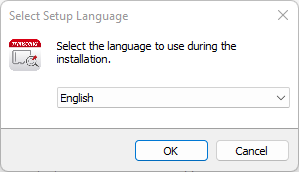
Select the language to use during the installation and click “OK”.
-
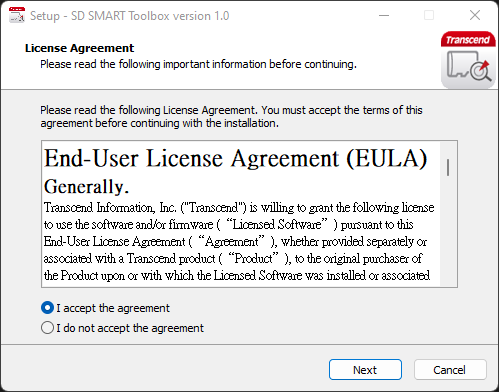
Tick “I accept the agreement” of Transcend EULA to continue, or “I do not accept the agreement” to cancel the installation.
-
Select a destination folder to install. The default folder is “C:\Program Files (x86)\Transcend\SD SMART Toolbox”.
-
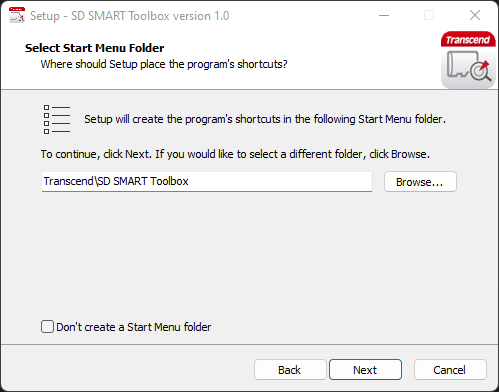
If you want to create a Start Menu shortcut, please select a Start Menu folder. The default folder is “Transcend\SD SMART Toolbox”. Otherwise, please tick “Don't create a Start Menu folder”.
-
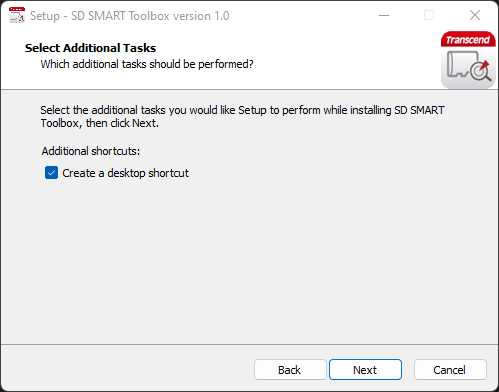
Tick “Create a desktop shortcut” if you want to create a shortcut on desktop.
-
The setup information is listed. Click “Install” to begin the installation process.
-
If your computer already has “.NET Framework 4.6.1” or later version, only SD SMART Toolbox will be installed (go to Step 10). Otherwise, a pop-up window will ask you to download .NET Framework first.
-
Please wait for the SD SMART Toolbox installation to complete.
-
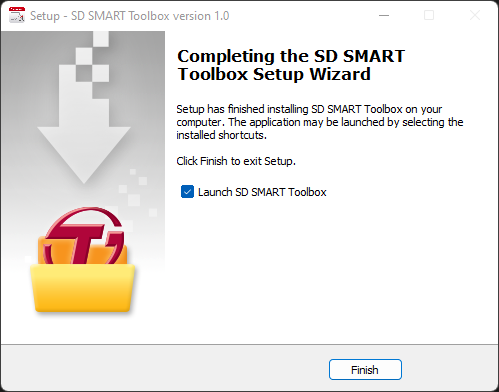
Tick “Launch SD SMART Toolbox” if you want to run the SD SMART Toolbox immediately. Click“Finish” to complete the installation.
4. Status
Drive Status
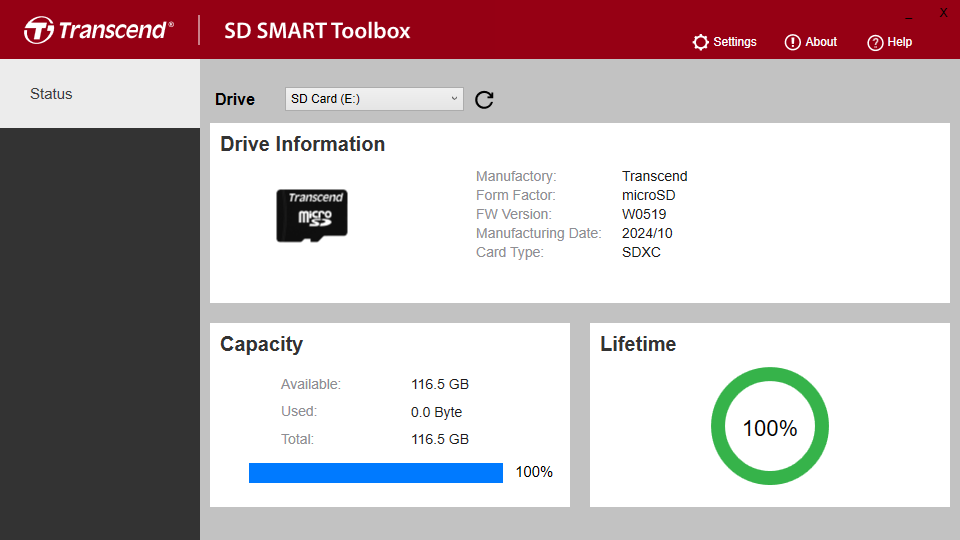
Drive Status displays standard drive information of supported Transcend SD.
-
Select “Status” tab on the left sidebar.
-
Choose a Transcend SD on the upper “Drive” text box to view the Manufactory, Form Factor, Firmware Version (F/W Ver.), Manufacturing Date and Card Type.
5. Settings
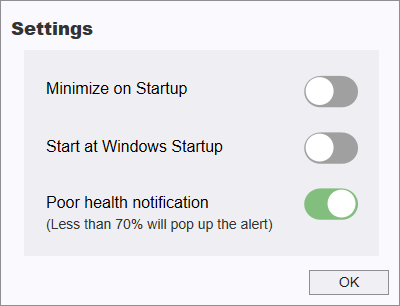
Users can adjust the following settings depending on personal preferences:
- Minimize program window on Startup
- Start program at Windows Startup
- Poor health notification
6. Troubleshooting
-
Q: SD SMART Toolbox cannot detect my storage device.
A: Your device might not be properly connected to your computer. Please reconnect the device to make sure it is securely connected to the appropriate port via the Transcend RDF5 card reader. .
-
Q: SD SMART Toolbox has no response when I double click its icon.
A: You might not have Administrator privileges on the computer you are using. To run SD SMART Toolbox on Windows OS, please click “Allow” when prompted for Administrator privileges.
More Help
If you cannot find the answer to your problem in this manual and are having difficulty with the SD SMART Toolbox software or your Transcend solid state drive, Please visit our Tech Support website at http://transcend-info.com/Support/contact_form